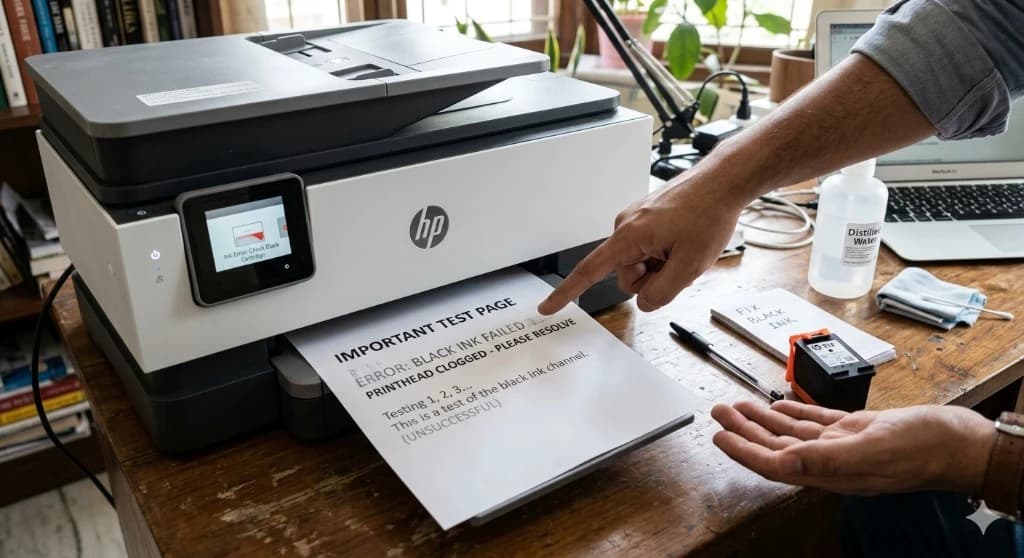
If your printer prints colors but skips black text, the issue is usually a clogged printhead, low or dried black cartridge, or a driver setting mismatch. The good news is that most cases can be fixed at home in under 30 minutes.
Common Signs of Missing Black Ink
You might see blank spaces where black text should appear, gray instead of deep black, faded receipts or labels, or horizontal lines in dark areas. If only black is affected and other colors print normally, focus on black cartridge and printhead checks first.
Step 1: Check Ink or Cartridge Status
Open your printer app (HP Smart, Canon, Epson, Brother utility, etc.) and check the black ink level. Replace the black cartridge if it is empty, near empty, or has been installed for a long time and may have dried.
If you use refillable tanks, verify black ink is above minimum level and that air bubbles are not visible in feed tubes (for models that expose tubes).
Step 2: Confirm Print Settings
Wrong settings can block proper black output:
1. Open print dialog and select your printer. 2. Set Paper Type correctly (Plain, Photo, etc.). 3. Turn off Draft/Economy mode for testing. 4. Ensure Grayscale or Black Ink Only options are set appropriately for your test page.
Then print a nozzle test or internal test page.
Step 3: Run Nozzle Check and Head Cleaning
For inkjet printers, run maintenance tools from the printer panel or desktop utility:
1. Nozzle Check 2. Printhead Cleaning 3. Optional Deep Cleaning (only if normal cleaning fails)
If black segments are missing in the nozzle pattern, run one more cleaning cycle and wait 10-15 minutes before retesting. Avoid running many deep cleans in a row, since it can waste large amounts of ink.
Step 4: Reseat or Replace the Black Cartridge
Remove the black cartridge and inspect:
- Protective tape fully removed - Contacts clean and undamaged - Cartridge vents not blocked
Reinstall firmly, close the cover, and let the printer reinitialize. If output is still blank, try a new genuine or high-quality compatible cartridge.
Step 5: Align Printhead
After replacing cartridges or cleaning, run Printhead Alignment. Misalignment can make black text look fuzzy, broken, or shadowed even when ink flow has improved.
Step 6: Advanced Checks (If Black Still Fails)
If you still cannot print black:
- Update printer drivers on Windows or Mac - Restart printer and computer - Check for firmware updates from the manufacturer - Remove and re-add the printer in system settings
For office devices, also test from a second computer to rule out profile-specific driver issues.
Laser Printer Note
For laser printers, missing black output usually points to toner cartridge, drum, or transfer issues instead of nozzles. Replace toner first, then inspect drum/fuser behavior if defects repeat in the same pattern on every page.
Prevent Black Ink Problems
Print at least one black-and-white page every week to prevent drying, keep cartridges sealed until use, and store paper in a dry environment. Infrequent use is a top cause of clogged black nozzles in home printers.
Need Help Fast?
If black ink still does not print after cartridge replacement and cleaning, there may be a printhead hardware issue. Call +1-888-804-0557 for step-by-step support for your printer model.