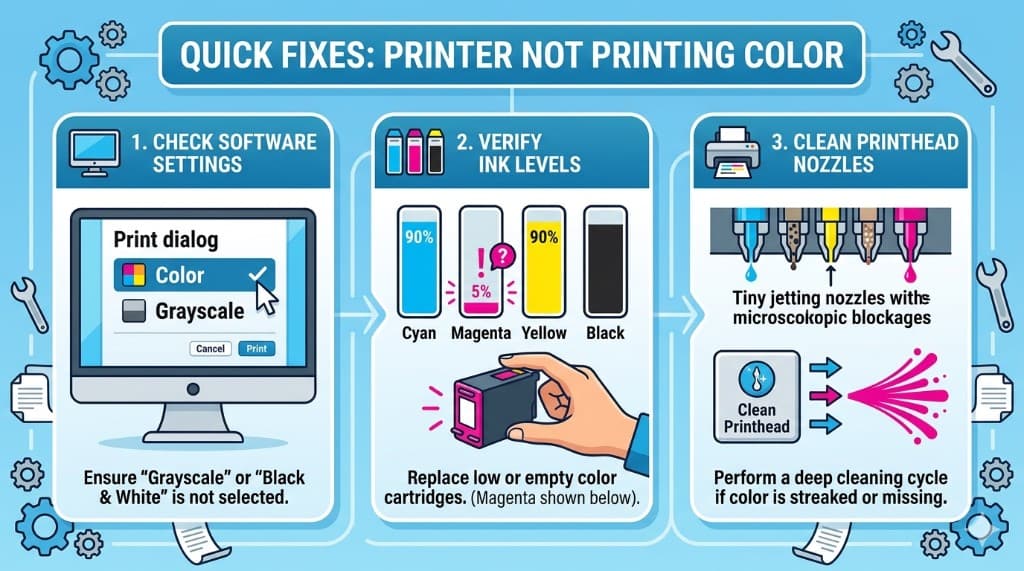
If your printer suddenly stops printing color, the issue is usually one of three things: incorrect print settings, clogged color nozzles, or cartridge/tank problems. Most cases can be fixed at home without replacing the printer.
Common Signs of Color Printing Problems
You may notice pages printing only in black and white, missing one color (like blue or magenta), faded images, or strange color shifts. If text prints but photos look wrong, start by checking software settings before replacing supplies.
Step 1: Check Print Dialog Settings
Many color issues come from accidental settings:
1. Open the print dialog for your document. 2. Confirm Color is enabled (not Grayscale or Black & White). 3. Set the correct Paper Type (plain paper, photo paper, etc.). 4. Disable Draft mode for testing.
Then print a test page to confirm whether color output returns.
Step 2: Verify Ink or Toner Levels
Open your printer utility (HP Smart, Epson utility, Canon IJ, Brother software, etc.) and check each color cartridge/tank level. One empty or low color can cause the entire page to print with incorrect tones.
For ink tank models, ensure each color is above minimum and that no air bubbles are visible in feed lines if your model shows them.
Step 3: Run Nozzle Check and Head Cleaning (Inkjet)
For inkjet printers:
1. Run Nozzle Check. 2. If lines are missing, run Head Cleaning. 3. Repeat once after waiting 10-15 minutes.
Avoid multiple deep-clean cycles in a row, as they consume significant ink.
Step 4: Inspect and Reseat Color Cartridges
Remove each color cartridge and confirm:
- Protective tape is removed - Cartridge vents are not blocked - Contact points are clean
Reinstall cartridges firmly and allow the printer to initialize before printing again.
Step 5: Align Printhead and Calibrate Colors
After cleaning or replacing cartridges, run Printhead Alignment and any available Color Calibration tool. This improves banding, shifted colors, and uneven output.
Step 6: Driver and Firmware Checks
If color still fails:
- Update printer drivers on Windows or Mac - Install the full manufacturer driver package (not only generic OS driver) - Check for firmware updates from the printer brand - Remove and re-add the printer
Testing from a second computer can help confirm whether the issue is software-specific.
Laser Printer Color Issues
For color laser printers, missing colors often point to low toner in one channel, drum or transfer belt wear, or calibration errors. Replace low toner first, then run color calibration from the printer menu.
How to Prevent Color Print Problems
Print a color test page weekly, keep cartridges sealed until use, and avoid long idle periods. Regular use helps prevent dried nozzles and keeps color channels working consistently.
Need Help Fast?
If color output is still missing after cleaning and cartridge checks, there may be a printhead or hardware fault. Call +1-888-804-0557 for guided support for your printer model.