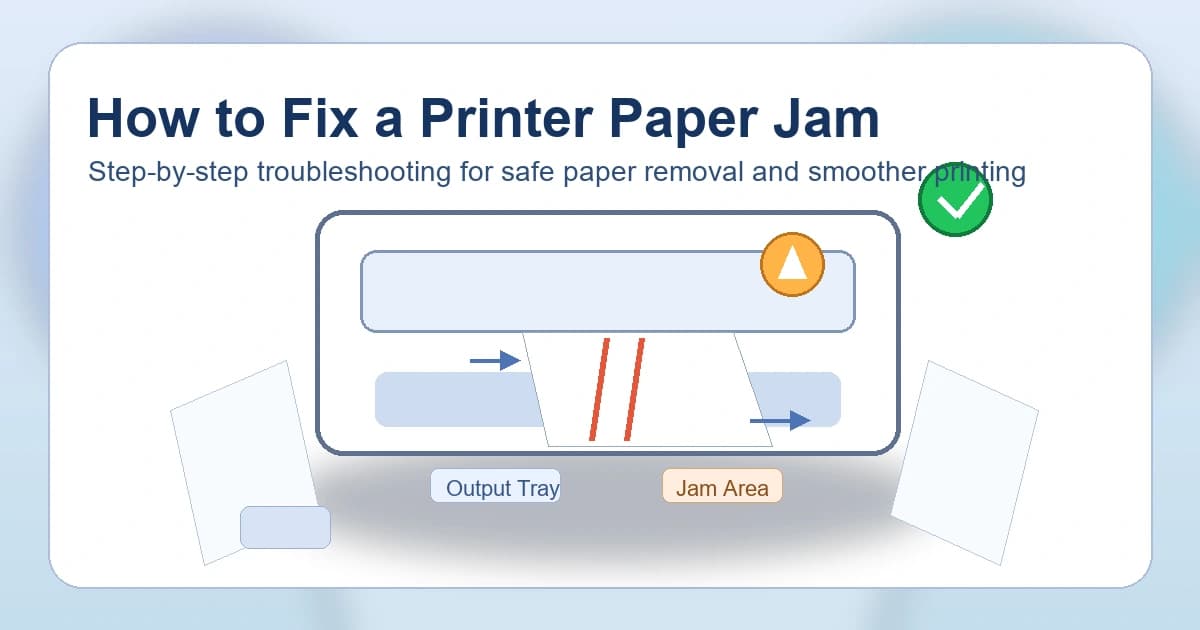
A paper jam is one of the most common printer issues, but most jams can be fixed in a few minutes without damaging your printer. This guide walks you through safe removal steps and prevention tips that work for HP, Canon, Epson, Brother, and other major printer brands.
Why Printer Paper Jams Happen
Paper jams usually happen due to one of these reasons: overloaded paper tray, wrong paper size or type, curled or damp paper, dirty pickup rollers, or small paper scraps left inside from a previous jam.
If your printer repeatedly jams, it often means there is a feed path issue, roller wear, or paper quality problem.
Quick Safety Steps Before Removing Jammed Paper
1. Turn the printer off and unplug it. 2. Wait 30 seconds so rollers and internal components stop moving. 3. Open all accessible doors: input tray, rear access panel, and output area. 4. Remove loose sheets from the tray before pulling jammed paper.
Never yank paper quickly. Pulling too hard can tear paper and leave pieces inside the printer.
Step-by-Step: How to Clear a Paper Jam
Step 1: Remove Paper from the Main Tray
Take out the paper stack and check for bent, torn, or damp sheets. Fan a fresh stack and align it neatly before reloading later.
Step 2: Pull Jammed Paper in the Direction of Feed
Locate the stuck sheet and pull it slowly with both hands in the paper path direction. If your model has a rear access door, remove paper from the rear first when possible.
Step 3: Check for Torn Pieces
Use a flashlight to inspect rollers and corners inside the paper path. Remove any tiny scraps carefully.
Step 4: Clean Pickup Rollers
With the printer unplugged, wipe rubber rollers gently using a lint-free cloth slightly damp with water. Let rollers dry fully before powering on.
Step 5: Reload Paper Correctly
Load paper below the tray maximum line. Adjust paper width guides so they touch the stack lightly without bending it.
Step 6: Restart and Test Print
Plug in the printer, turn it on, and print a test page. If no jam message appears, the issue is resolved.
Printer Still Says Paper Jam?
If the error remains after clearing visible paper:
- Reset the printer by turning it off for 1 minute. - Check rear duplexer or maintenance panel for hidden scraps. - Verify paper settings in print dialog match tray paper size. - Update printer firmware and drivers.
Persistent false jam alerts may indicate worn rollers or a sensor fault.
How to Prevent Paper Jams
Use clean, dry paper stored flat. Avoid mixing paper types in one tray. Do not overfill trays. Clean rollers regularly if you print often. Replace worn rollers when your printer starts feeding multiple sheets or jamming frequently.
When to Contact Support
If your printer jams every few pages even after cleaning and proper loading, there may be a hardware issue in the feed assembly. Contact technical support for guided diagnostics and part replacement options.