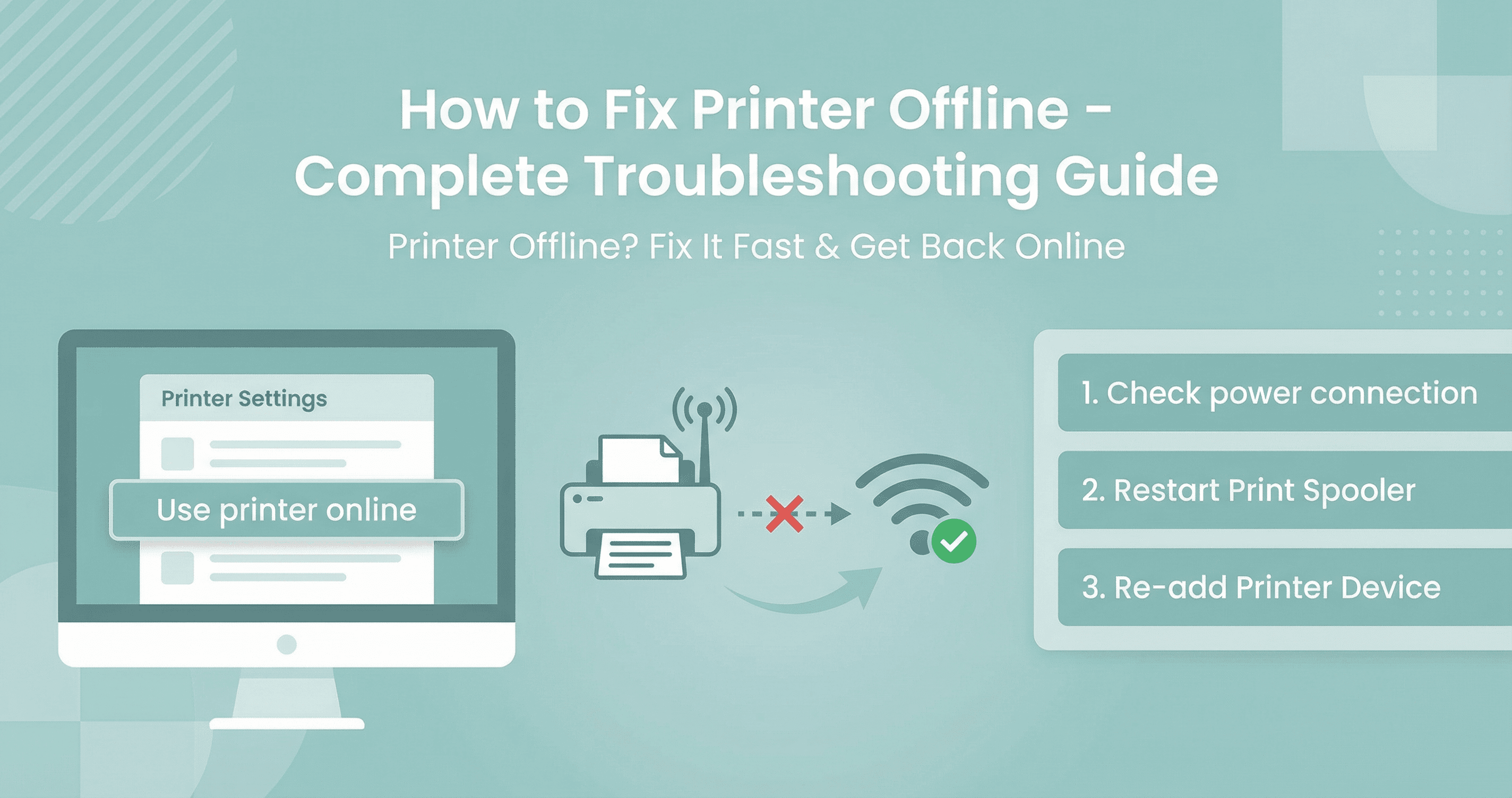
Printer showing offline? Most printer offline issues have quick fixes you can resolve in minutes. This guide covers proven solutions for Windows, Mac, USB, and wireless printers. Whether you have an HP LaserJet, Canon PIXMA, Epson EcoTank, or Brother MFC printer, these solutions work for all major brands.
What Does "Printer Offline" Mean?
When your printer shows as "offline," your computer can't communicate with it, even if the printer appears to be on and idle. That prevents print jobs from going through.
Common causes include: connection issues (loose USB cables, Wi‑Fi drop, or network problems); driver problems (outdated, corrupted, or missing printer drivers); print spooler errors (the Windows Print Spooler service stopped or stuck); settings (printer set to offline mode by mistake); network changes (router reset, new IP, or Wi‑Fi password change); and power (printer in sleep or not fully on).
Quick Fixes: Get Printer Online in 30 Seconds
These steps resolve most printer offline issues.
Fix 1: Set Printer to Online Mode (Windows)
1. Press Windows + I → Devices → Printers & scanners (or Bluetooth & devices → Printers & scanners on Windows 11). 2. Right‑click your printer → "Use printer online" (clear "Use printer offline" if it’s checked). 3. Or open the print queue → Printer menu → "Use Printer Online".
Fix 2: Check Power and Connections
USB: Make sure the cable is firmly connected. Try a different USB port, ideally on the computer rather than a hub. Wireless: Confirm the printer is on, connected to Wi‑Fi, and on the same network as your computer. Network: If it’s a wired network printer, check that it’s powered and connected via Ethernet or Wi‑Fi.
Power cycle: Turn the printer off, wait 30 seconds, then turn it back on.
Fix 3: Restart Print Spooler (Windows)
1. Press Windows + R, type services.msc, press Enter. 2. Find "Print Spooler" → Right‑click → "Restart".
Command line: Open Command Prompt as Administrator and run: net stop spooler then net start spooler.
Advanced Solutions for Persistent Issues
If the quick fixes didn’t work, try these next.
Fix 4: Update or Reinstall Printer Drivers
Outdated or corrupted drivers cause many printer offline problems.
Method A – Windows Update: Go to Settings → Windows Update → Check for updates. Windows may install printer driver updates; restart the computer after updating.
Method B – Manufacturer website: Visit your printer maker’s site (HP, Canon, Epson, Brother, etc.), open Support or Drivers, enter your printer model, and download the latest drivers. Run the installer and restart.
Method C – Reinstall the printer: In Settings → Devices → Printers & scanners, select the printer → Remove device. Restart the PC, then add the printer again via Add device so Windows can reinstall the driver.
Fix 5: Network Printer Offline Issues
Wireless and network printers sometimes need extra checks.
Check the printer’s IP address: Print a network configuration page from the printer’s control panel, note the IP, then open Command Prompt and run ping [printer IP]. If you see "Request timed out," the printer isn’t reachable on the network.
Re‑add the network printer: In Settings → Devices → Printers & scanners, remove the existing printer, then Add a printer or scanner. Choose Add printer using IP address, enter the printer’s IP, and complete the wizard.
Network settings: Ensure the printer and computer are on the same Wi‑Fi network, that Windows Firewall isn’t blocking the printer, and that router "client isolation" is off if you use it. Restart the router and printer if needed.
Fix Printer Offline on Mac
1. Open System Settings (or System Preferences on older macOS) → Printers & Scanners. 2. Select your printer → Open Print Queue. 3. In the menu bar, click Printer → Resume Printer if that option is available. 4. If it’s still offline, remove the printer (click the - button) and add it again (click +, select the printer, choose the driver or let macOS select it, then Add).
For network printers, confirm your Mac is on the same Wi‑Fi network. You can print a network configuration page from the printer to check its IP and network.
Prevention Tips
Update drivers regularly – Check for printer driver updates every few months. Stable connections – Use a good USB cable; for Wi‑Fi, keep a strong signal. Power management – Disable aggressive sleep mode or extend timeouts in the printer menu. Network stability – Prefer a stable Wi‑Fi or wired connection for network printers. Basic maintenance – Restart the printer and computer occasionally; keep the printer firmware updated if your model supports it.
Still Not Working?
If the printer still shows offline after trying these steps, there may be a network issue, ip configuration problem, or driver conflict. Please contact our Technical support helpline +1-888-804-0557 for further troubleshooting and help.